Hay Day is one of the most beloved farming simulation games available on mobile, developed by Supercell — the studio also known for titles such as Clash of Clans. Originally designed for iOS and Android, this charming game lets players cultivate crops, tend to happy animals, and build a thriving rural community at their own pace. For those who prefer a larger display and the precision of a mouse, playing Hay Day on PC has become an increasingly popular option. Several methods exist to make the transition from a small smartphone screen to a full desktop setup, each with its own advantages.
In short
- Hay Day can be played on a PC by using Android emulators that simulate a mobile environment on desktop hardware.
- BlueStacks is a popular, user-friendly emulator that allows users to run multiple Supercell games simultaneously with ease.
- MEmu Play is an alternative emulator recognized for its optimized performance, offering smooth frame rates and responsive controls.
- To start playing on a PC, users must install an emulator, sign in to a Google account via the Play Store, and download the game as they would on a mobile device.
- Playing on a larger screen with a mouse provides greater precision and efficiency when managing farm tasks like harvesting crops and tending to animals.
- Using a Supercell ID is essential to safeguard game progress, allowing players to sync their farm across multiple devices including phones, tablets, and PCs.
Choosing the Best Android Emulator for Your Computer
When it comes to mobile gaming on PC, Android emulators remain the most straightforward route. Rather than relying on a physical phone or tablet, an emulator creates a virtual Android environment directly on your Windows machine, allowing you to run mobile apps on desktop as if they were native software. This approach is particularly well-suited to Hay Day, since the game’s touch-based mechanics translate remarkably well to mouse controls on a bigger screen. Two emulators stand out as especially popular choices among the gaming community.
Setting up bluestacks for supercell games
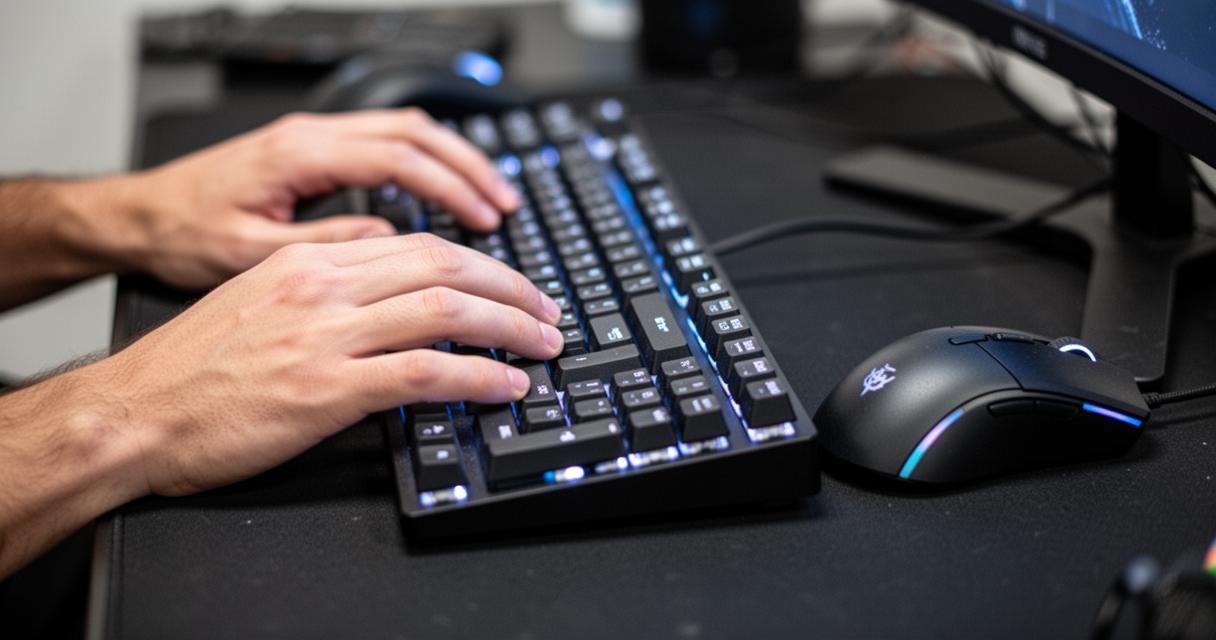
BlueStacks is one of the most widely used gaming emulators available, and it supports Windows 7 or later. It is free to download and install, making it an accessible entry point for anyone curious about desktop gaming with Android titles. Once installed, BlueStacks provides default controls tailored for gamers, and it allows users to run multiple Android apps simultaneously. This is particularly handy if you enjoy other Supercell titles alongside Hay Day, such as Clash of Clans or Clash Royale. The setup process is relatively painless: you simply download the installer from the official BlueStacks website, run it, and follow the on-screen prompts to complete the installation.
Utilising memu play for optimised performance
MEmu Play is another solid Android emulator that has gained traction among fans of cross-platform gaming. It is designed with performance in mind, offering smooth frame rates and responsive controls that can make a genuine difference when managing a busy farm. MEmu supports a range of Android versions and provides a straightforward interface that even newcomers will find intuitive. For those who have experienced lag or stuttering with other emulators, MEmu Play is frequently cited as a reliable alternative worth exploring.
Step-by-Step Guide to Download and Install the Game
Whichever emulator you choose, the process of getting Hay Day up and running on your computer follows a similar path. Understanding each step helps avoid common pitfalls and ensures your farming simulation game is ready to play as quickly as possible.
Accessing the Google Play Store on PC
Once your emulator is installed and open, you will need to sign in with a Google account to gain access to the Google Play Store. This step is essential, as the Play Store serves as the gateway to downloading Hay Day and keeping it up to date. If you do not already have a Google account, creating one is straightforward and free. After signing in, the Play Store interface within the emulator functions much like it does on a physical Android device, giving you access to the full catalogue of apps and games.
Searching for and Installing the App
With the Play Store open, you can use the search bar to look up Hay Day by name. The game will appear in the results, and from there the process mirrors what you would do on a standard Android phone or tablet — simply select the title and tap the install button. The download should complete within a few minutes depending on your internet connection, after which Hay Day will appear among your installed apps within the emulator. It is worth noting that the game is free to download, though it does offer optional in-app purchases for those who wish to accelerate their progress.
Optimising Your Farming Experience on a Larger Screen
Beyond simply getting the game to run, there are a number of ways to make the most of playing Hay Day on a larger screen. The jump from a smartphone display to a full monitor changes the experience considerably, offering greater visibility over your farm and making it easier to manage multiple tasks at once.
Managing Crops and Animals with Mouse Controls
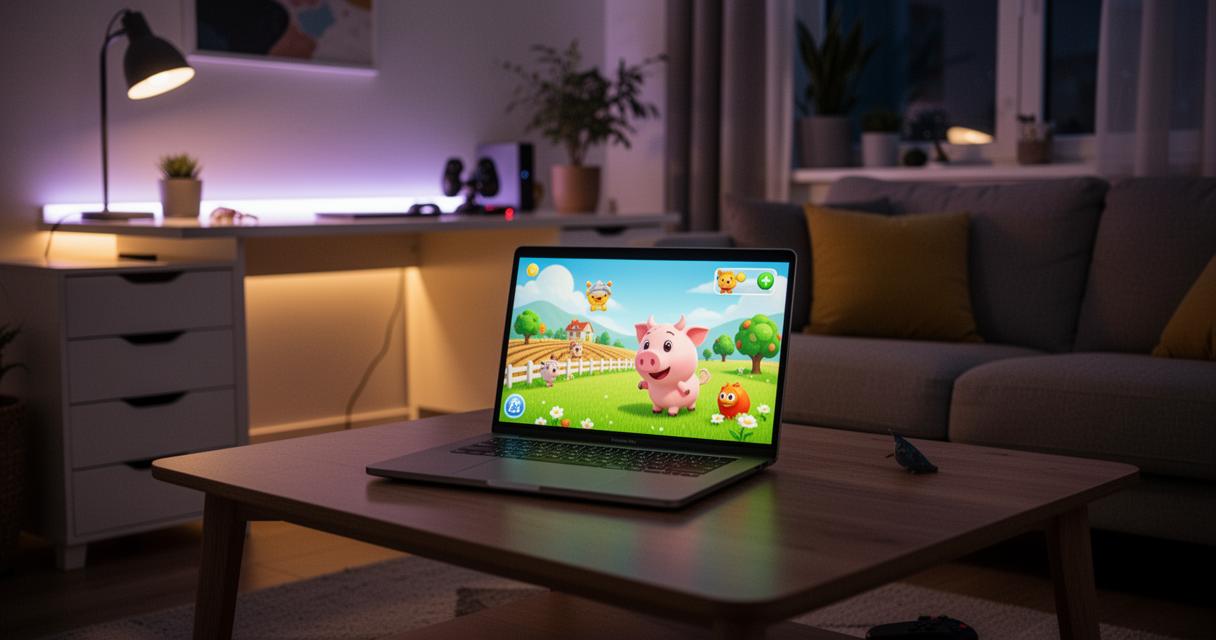
One of the most immediate benefits of desktop gaming is the precision afforded by a mouse. In Hay Day, crops do not die and there is no rain to contend with, which means the game is inherently relaxed in its pacing — but having fine-grained control over where you click and drag makes tasks like harvesting crops, feeding animals, and placing buildings considerably more efficient. The game’s interactions with happy animals, from collecting eggs to cooking bacon with pigs, feel particularly satisfying when managed with the accuracy of a mouse pointer. Adjusting the display settings within your emulator, such as increasing the resolution to match your monitor, can further enhance the visual quality and make the farm feel truly alive on a big screen.
Securing your progress with supercell id
One aspect of playing Hay Day on PC that deserves particular attention is safeguarding your progress. Supercell provides its own account system, known as Supercell ID, which allows players to link their farm to a single account accessible across multiple devices. This is especially important for anyone switching between a mobile device and a PC setup, as it ensures your hard-earned resources, buildings, and animal unlocks are never lost. Setting up a Supercell ID is a straightforward process within the game’s settings menu, and it is strongly advisable to do so before investing significant time into your farm. With your account secured, you can move freely between an iPhone, an iPad, or your computer without any disruption to your progress. For players who want to stay current, it is also worth checking in periodically for updates — the Hay Day Fall 2023 update, for instance, brought fresh content to the game, and further updates continue to expand the experience.