Modern smartphones have become indispensable tools for capturing memories, managing daily tasks, and storing an ever-growing collection of applications and files. As our reliance on these devices increases, understanding how to effectively manage storage becomes crucial. Android users often face the decision of whether to rely solely on built-in memory or to expand their capacity through microSD cards. This choice influences not only how much content you can store but also how smoothly your device operates. Knowing when and how to leverage external storage can make a significant difference in your overall smartphone experience.
Understanding internal and external storage: what every android user should know
The fundamental differences between built-in memory and microsd expansion
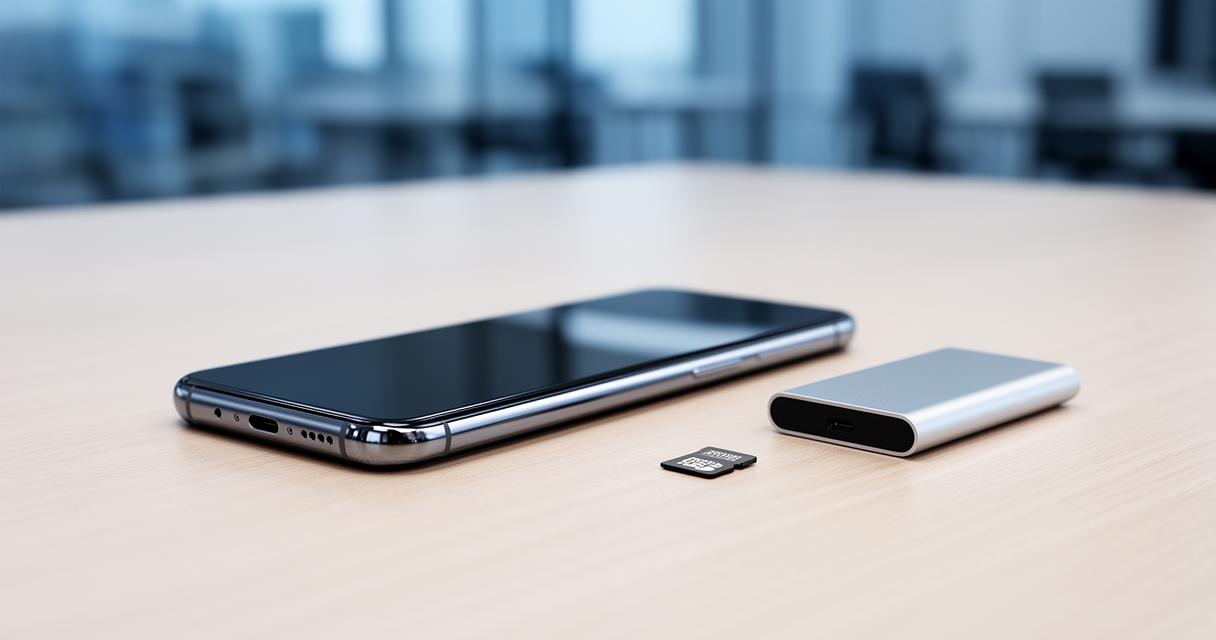
When discussing smartphone storage, it is essential to distinguish between the internal memory that comes pre-installed in your device and the external storage provided by microSD cards. Internal storage is typically faster and more integrated with the operating system, housing critical system files, pre-installed applications, and user data. This built-in memory is soldered directly onto the motherboard, ensuring quick access and seamless operation. In contrast, external storage via microSD cards offers a flexible and removable solution for expanding your device's capacity. These cards can be inserted or removed as needed, providing an affordable way to increase available space without upgrading to a new handset.
The speed and reliability of internal storage generally surpass that of microSD cards, largely due to the technology and connection methods employed. Internal memory uses advanced flash storage standards that allow for rapid read and write speeds, which is vital for running applications and accessing system files efficiently. External cards, while improving in performance over the years, may still lag behind in speed, particularly when used for tasks that demand quick data access. This difference becomes particularly noticeable when launching applications or loading large files. Understanding these distinctions helps users make informed decisions about where to store specific types of content on their Android devices.
How android manages files across different storage types
Android's approach to managing files across internal and external storage has evolved considerably over successive versions of the operating system. The system designates internal storage as the primary location for applications, system files, and user-generated content by default. When a microSD card is inserted, Android recognises it as additional storage space that can be used for media files, documents, and sometimes even applications. The operating system provides users with the flexibility to move certain types of data between internal and external storage, although the extent of this control depends on the device manufacturer and the version of Android in use.
One of the key features introduced in recent Android versions is the ability to format a microSD card as adoptable storage. This option allows the card to be merged with the internal memory, effectively expanding the built-in capacity. When configured in this manner, the external card becomes encrypted and tied to the specific device, making it function almost identically to internal storage. However, this comes with trade-offs, including potential performance issues if the card is not sufficiently fast, and the inability to easily transfer the card to another device. Alternatively, users can opt to keep the microSD card as portable storage, which allows for easy removal and use in other devices but limits its integration with the system.
Maximising your smartphone's capacity: strategic uses for microsd cards
Optimising photo and video storage without compromising device performance
Photos and videos are among the most storage-intensive files on any smartphone, and managing them wisely is essential to maintaining device performance. Storing these media files on a microSD card is one of the most effective strategies for freeing up internal memory. Most camera applications on Android devices allow users to set the default save location for new photos and videos directly to external storage. By directing media files to the microSD card, you preserve valuable internal space for applications and system processes that benefit from faster access speeds.
It is worth noting that while external storage is ideal for archiving photos and videos, the speed of the microSD card can affect how quickly these files are saved and retrieved. High-quality cards with faster read and write speeds ensure smoother recording of high-resolution videos and quicker access when browsing your gallery. Additionally, storing media on a microSD card provides a convenient backup solution. If you need to transfer your photo collection to another device or computer, simply removing the card and inserting it elsewhere makes the process straightforward. This flexibility is particularly useful for users who frequently switch devices or wish to share content without relying on cloud services.
Best Practices for Managing Applications Between Internal and External Memory
Managing applications between internal and external storage requires a thoughtful approach to ensure optimal performance and functionality. While Android does offer the option to move certain applications to a microSD card, not all apps are suitable for this treatment. System applications and those that rely on background processes or widgets typically perform best when kept on internal storage due to the faster access speeds. Moving these to external storage can result in slower launch times, lag, or even functionality issues.
For applications that you use less frequently or those that primarily serve as repositories for data rather than active processes, relocating them to a microSD card can be beneficial. Games with large file sizes or media streaming applications that cache content are often good candidates for external storage. To move an app, navigate to the settings menu, select the applications section, and look for the option to change the storage location. Keep in mind that some apps, particularly those downloaded from Google Play, may restrict this capability due to security or performance considerations. Regularly reviewing which applications reside where and adjusting based on usage patterns helps maintain a balanced and efficient storage setup.
Memory management essentials: freeing up space and data recovery solutions
Practical Methods for Reclaiming Storage Space on Your Android Device
Over time, even the most capacious smartphones can become cluttered with unnecessary files, cached data, and redundant applications. Freeing up space on your Android device is a routine maintenance task that helps preserve performance and ensures you have room for new content. One of the simplest methods is to regularly review and delete old photos, videos, and downloads that no longer serve a purpose. Android's built-in file manager or third-party applications can assist in identifying large files and duplicate content that can be safely removed.
Clearing cached data from applications is another effective way to reclaim storage space. Cache files accumulate as you use apps, storing temporary information to speed up future access. While caching improves performance, these files can grow substantially over time. Accessing the storage settings allows you to clear cache for individual applications or all apps at once. Additionally, uninstalling applications that you rarely use or that have been replaced by better alternatives contributes significantly to freeing up internal memory. Consider also utilising cloud storage services for documents and media, which can offload large amounts of data from your device while keeping it accessible when needed.
Safeguarding your data: recovery options when things go wrong
Data loss is an unfortunate reality that can occur due to accidental deletion, device malfunctions, or corrupted storage media. Understanding your recovery options is essential to minimising the impact of such incidents. For internal storage, many Android devices offer built-in backup solutions that sync data to cloud services, ensuring that contacts, photos, and application data are preserved even if the device fails. Regularly enabling and checking these backup settings provides peace of mind and simplifies the restoration process when setting up a new or repaired device.
When it comes to microSD cards, recovery options depend largely on the condition of the card and the nature of the data loss. If files are accidentally deleted, specialised recovery software can often retrieve them, provided the card has not been overwritten with new data. Connecting the card to a computer via a card reader and using dedicated recovery tools increases the chances of successful restoration. However, if the microSD card becomes physically damaged or corrupted, recovery becomes more challenging and may require professional services. To mitigate risks, it is advisable to periodically back up important files from external storage to a computer or cloud service, ensuring that critical data remains protected regardless of hardware failures.